Investigate unauthorized connections
Work through the destinations your organization's workflows reached that no allowlist covered, and decide which to allow and which to keep out.
Before you begin
- At least one workflow run reported to the control plane. See Connect your organization to the Bullfrog platform.
Step 1: Open the roll-up
In the left navigation, select Unauthorized Connections.
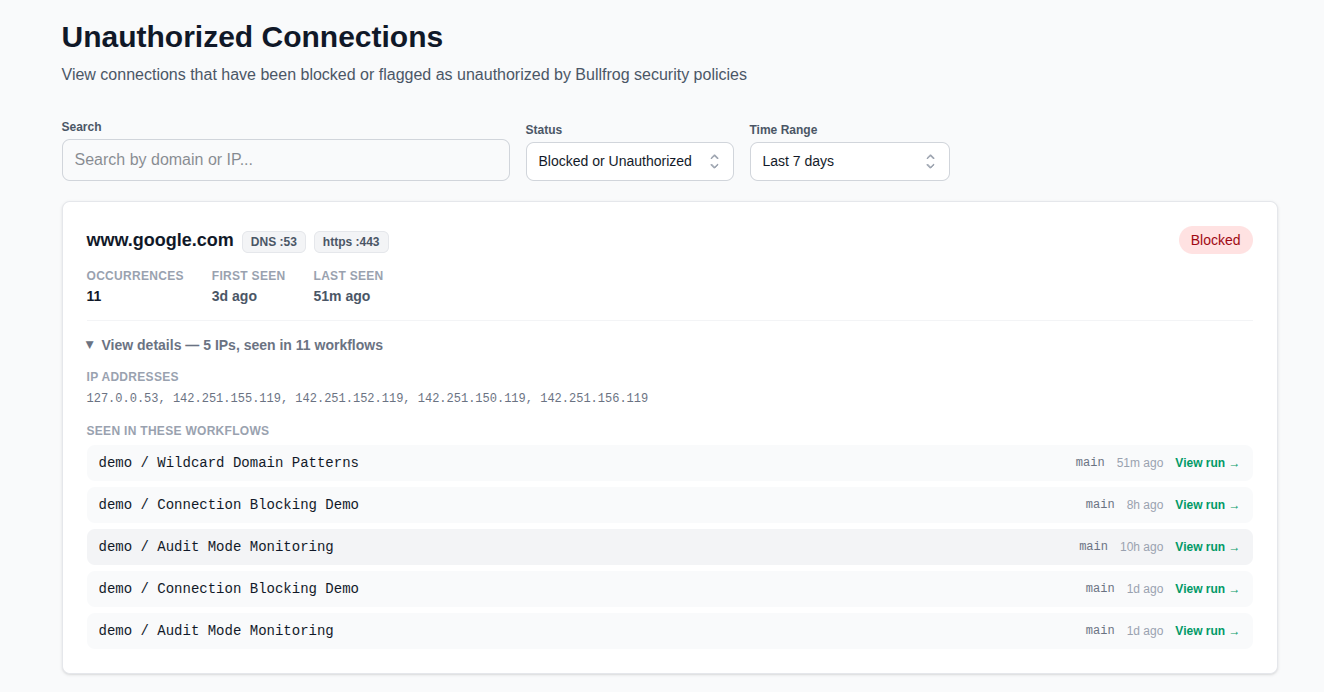
The page groups connections across every repository in your organization by destination, so one card covers all the times any workflow reached that host, not one row per connection. Each card shows:
- The domain or IP address, and the ports used
- A Blocked or Unauthorized badge
- The addresses the domain resolved to
- When it was first and last seen
- How many times it occurred
Unauthorized means a job in audit mode reached it and nothing stopped it. Blocked means a job in block mode tried and was denied.
Select View details on a card to expand it. The expanded card lists the IP addresses the domain resolved to and the five most recent workflow runs that reached it, each with a View run link straight to that run.
Step 2: Narrow the list
Use the time range control to widen or tighten the window, up to the last 30 days.
Use the search box to filter by domain or address, and the status filter to show only Blocked or only Unauthorized.
The page shows at most 500 connections and doesn't paginate. If you're at the cap, shorten the time range or search for a specific destination rather than assuming the list is complete.
Step 3: Triage each destination
For each card, decide which of three cases it is:
- Expected and needed. A package registry, a container registry, a deployment target. Allowlist it, either in the workflow's
allowed-domainsor in a policy. See Enforce an egress policy across your organization. - Expected and unnecessary. Telemetry endpoints, update checks, analytics from a build tool. Leave these out of the allowlist. They're exactly what block mode should stop.
- Unexplained. You can't account for which step wanted it. Follow it to the run before allowlisting anything.
Step 4: Trace a destination back to a run
The roll-up shows what was reached, not which job reached it. To find that:
- Select View details on the card, then select View run next to one of the runs listed under Seen in these workflows. If the run you need isn't in that list of five, note the first-seen and last-seen timestamps instead, then select Workflow Runs and filter by repository and time range to the runs in that window.
- On the run's page, read its connection table, which lists each connection with the job it came from.
- Select a connection row to expand its process details: the process name, executable path, command line, and, for a containerized job, the container.
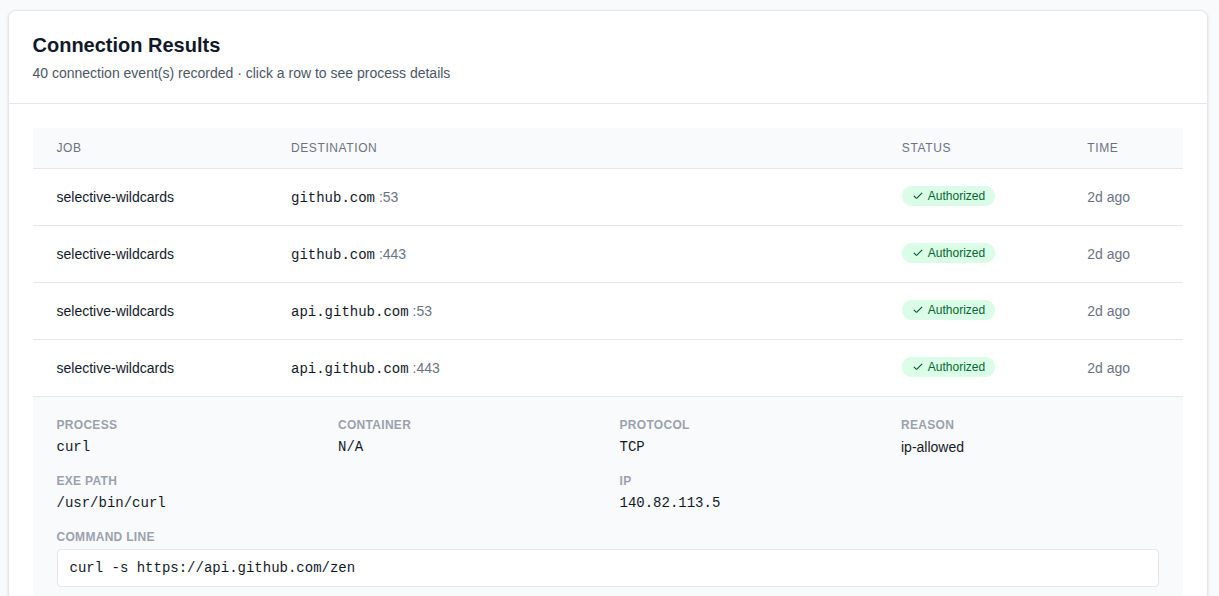
This is usually what identifies the step responsible. The job summary Bullfrog posts to that same run in GitHub carries the same details. See Review connections in a job summary.
Step 5: Act on what you found
Add the destinations you accepted to an allowlist, and re-check this page after the next few runs. A destination that stops appearing is one you've accounted for.